The extension convert the HTML from the source page but there are some special setup to now:
Setup the alignment for the text in a table cell:
| <TD align="justify" >some text here</TD> |
| <TD align="center" >some text here</TD> |
It's also possible define a style class and setup the style class to the cell, like:
| <TD class="cellClass" >some text here</TD> |
<style type="text/css">
.cellClass {
alignment:justify;
} |
Use special chars in the text
| ! " £ $ % & / ( ) = ? ^ ì ' é * + è ç ° § ù à ò ; : _ - . , ©_€ |
The result in the PDF will be:
|
| ! " £ $ % & / ( ) = ? ^ ì ' é * + è ç ° § ù à ò ; : _ - . , ©_€ |
How work table width
The table width can be setup in percent or in pixel, if you setup the width in percent there are no problem because the pdf will create a table with the exact percent you setup. The problem is when you setup the width in pixel because the xtension will transform your html pixel in pdf points.
To convert the html pixel to pdf points the extension use this method:
A page A4 is 595 x 842 pdf points and each HTML pixel is converted in 0,72 pdf points
For example if you setup a table width = 600 pixel the table width will be converted in 600 * 0,72 = 432 pdf points
A page A4 is 595 x 842 pdf points and correspond to 826 x 1169 HTML pixel
How work table header
<table>
<tr header="yes" > |
<table>
<tr header="yes">
<td></td><td></td>
</tr>
<tr header="yes">
<td></td><td></td>
</tr>
<tr >
<td></td><td></td>
</tr>
<tr >
<td></td><td></td>
</tr>
</table> |
How work table border
The tables border in pdf document can be setup with integer value like
<table s_width="1" but also with decimal value like
<table s_width="0,5" because the pdf support decimal value in border width.
this are 2 example of tables with integer value and with decimal value

How work images annotation
The pdf document support annotation for images, so you can define the annotation for images.
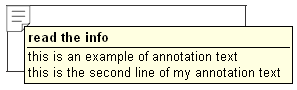
The annotation can have a Title and a text, the title is not required.
The annotation can be only simple text without any Html tag, you can use VBCRLF to create a multiline annotation and to insert a new line you must use the "\n" code, like "This is first line \n This is the second line"
The images support the annotation only if there isn't a link on the image because the link on the image overwrite the annotation. This are 2 example on how setup the annotation in your Html code:
<img AnnotationText="My annotation text here" AnnotationTitle="Read this info"
This are example of table annotation:
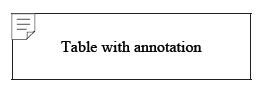
on mouse over:
How work NewPage tag
There is a method to force the pdf to create a new page.
When you want the pdf start with a new page you must insert a page-break Html Tag:
<div style="page-break-after: always"></div> This tag cannot be insert inside other Html tags like tables, span, div, etc... but must be at the body level. This image is an example of right method:
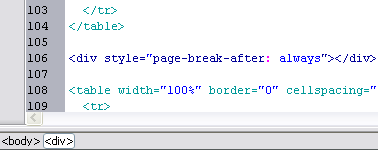
To verify if the page-break tag is not inside other tag put the mouse cursor inside the page-break tag and in the Dw tag bar you must see <body><div> like this example
How work css-style
The extension support css-style to give formattings parameters to the Html tags.
The css-style can be write in the page or can be linked and the 2 methods can be used toghether in the html source page. When you use the link method you must setup the href attribute relative to the site root because the parent path are not allowed.
This is a valid css-style link:
<link rel="stylesheet" type="text/css" href="/Examples/SourcePage/Test.css">
This is a not valid css-style link:
<link rel="stylesheet" type="text/css" href="../../Test.css">
Possible security error
On some server you may receive a System Security Permission Problem, in this case you need modify your
web.config file and add the security permission. The
web.config is a configuration file of AspNet application and must be in the site root. In case you don't have a
web.config file in your site you can download this:
Web.ConfigIn the web.Config file you must add the
trust node inside the
system.web node with 2 attribute the
level and the
originUrl like you can see in the image belowe. The
level must be set to
Full and the
originUrl must be the url of your site. In this image the
originUrl is setup for our site.
In case your server admin don't permit this option you must uncheck the "
UseAllFonts" checkbox in the main par.