Connection:
Select a connection to the database
Click the Define button if you need to define a connection
Cart:
Define if you use your custom Cart or if you use PayPal Cart. In case you use PayPal cart the "Cart order" tab is enabled so you can setup how create the order and order-details records from PayPal-Ipn request data.
PayPal page:
The PayPal you must call to validate the PayPal request. If you want use the test pages you receive in the demo site you must change this Url with the url for the test page like http://localhost/TestPage.asp but remenber to change this url before put the pages on-line.
Field list:
Define the list of field you receive from PayPal. I add the standard PayPal field as default but you can add your own fields with the Add button. You will find this fields name in the "Get value from" combo to use theyr value in the transaction.
XmlHttp:
The component to use to make the server-to-server request. If the default value don't work you must test the other and find the one work on your server. This setup depend on the server configuration.
Write log:
If checked the extension will create a log each time the page receive a request.
The extension create a montly file log where the name is like PayPal_200704.log
The first 4 digit of the number is the year and the last 2 digit is the month.
Log file path:
Define the folder where create the log
Mail on error:
Define if send a mail to the web-master in case the page has errors on validate a request. This are Asp Errors, this page work in background and if there are asp error you cannot get them so the extension verify and detect all the possible asp errors and send a mail to you in case occours.
Cart order panel:
Order table:
Define the table where insert the order record
Unique column key:
The field in the order table that is the unique column key.
Must be an auto-increment field numeric.
Order field:
The list of fields in your order record
Add/Edit buttons:
Open the order field pop-up:
Database field:
The name of the database field
Get value from:
Define the source where get the field value, can be PayPal IPN request, Session variable, Application variable or Entered value
Variable name:
The name of the variable, if you choose Custom the text field to the right will be enabled and you must type the name yourselfe.
Entered value:
If you want enter a fix value you can insert it in this field. This field can be used also to get a value from your own function, in this second case you must write in this field the name of your function like:

or

Submit as:
The data type is the kind of data the column in your database table is expecting (text, numeric, Boolean checkbox values).
The available data type are:
Text (Null)
Text ('')
Integer (Null)
Integer (0)
Float (Null)
Float (0)
Date DD/MM/YYYY
Date MM/DD/YYYY
Date YYYY/MM/DD
Date HH:MM:SS Mmm DD, YYYY PDT
Checkbox Y,N
Checkbox 1,0
Checkbox -1,0
Detail order table:
Define the table where insert the detail order records
Order column key:
In this combo you must choose the field in your detail table that is the reference to the order unique column key field.
Detail order fields:
The list of fields in your order-details record.
Add/Edit buttons:
Open the detail order field pop-up, the same as per order field pop-up
Database Panel:
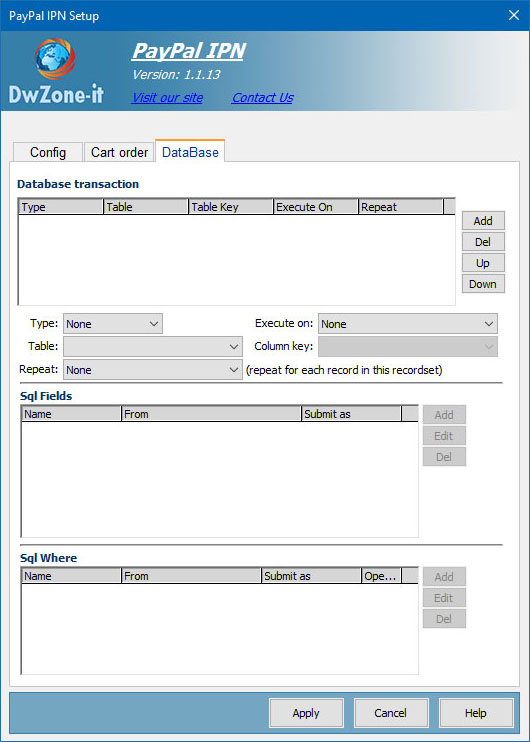
The database panel define a list of transaction you need execute on the databse to finalize the payment. A transaction is a sql query you want execute to insert, update or delete one or more records in the database.
You can define how many transaction you need without any limit. The transaction are execute in the same order you enter in this panel and is very important you put the transaction in the right order they must be executed.
Transaction:
The list of transaction you setup
Type:
The type of transaction like INSERT, UPDATE or DELETE
To create a select you can use the standard Dw recordset behavior.
Execute on:
Define when execute the transaction. When PayPal call this page for a payment the payment may result confirmed or not confirmed and after you make all the verification can be VERIFIED or NOT VERIFIED. So you may have some transaction you want execute in case the paymenti is verified and execute others if the payment is not verified. With this option you can define exactly when execute a transaction.
The value can are:
- Always: will be execute if the payment is Verified or if is not verified
- Verified: will be execute only if the payment is Verified
- Not verified: will be execute only if the payment is not Verified
Table:
The database table you want execute the sql query
Column key:
Available only for insert transaction define the database table unique column key field. When you setup an insert transaction may be you need retrieve the value of the key column of the record you insert. On setup this field you will be able to retrieve the key value of the record to use in the others transaction. The transaction are execute in the same order you enter in this panel so the value of this key colum will be available only for the next transaction. When you define this field you will find in the "Get value from" combo of the Add and Edit popup a new field, at the end of the list,
like this image:
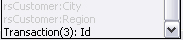
For example the
Transaction(3):Id will return the value of the key column of the transaction number 3.
To be sure the extension return the correct value use a numeric auto-increment field in the db to define this unique column key.
Repeat:
You can setup how many times repeat the same transaction. To do this you must choose a recordset name from this combo and the transaction will be repeated for each record in the recordset you choose. This is usefull for insert the details record for an invoice based on the OrderDetail record where for each record in the order detail table you must create a record in the invoice detail table.
Sql Fields:
Define the list of fields you want insert or update in the transaction, where get the value of this fields and the data format.
Disabled for delete transaction because in the delete you remove all the record.
Use the button in the right to manage this fields list.
Add/Edit Field:
Database field:
Select the database field you want insert or update
Get value from:
Choose a source for this field value. When you open this combo you will find the list of available source you have in the page.
There are 2 type of source the PayPal fields and the recordset fields you create in the page.
Like the image belowe:
In this image you can see some fields start with "PayPal:" and some other fields start with "rsConfig", the first one are the field PayPal send to the page and the other are the field you have in the recordset you define in this page.
Entered value:
If you want enter a fix value you can insert it in this field. This field can be used also to get a value from your own function, in this second case you must write in this field the name of your function like:
or
Submit as:
The data type is the kind of data the column in your database table is expecting (text, numeric, Boolean checkbox values).
The available data type are:
Text (Null)
Text ('')
Integer (Null)
Integer (0)
Float (Null)
Float (0)
Date DD/MM/YYYY
Date MM/DD/YYYY
Date YYYY/MM/DD
Checkbox Y,N
Checkbox 1,0
Checkbox -1,0
Checkbox MS Access
Custom The value between parentesis are the value insert if the field return a null value When you use the "Custom" value you must setup the entered value from your custom function.
I add one function in the page to get the current datetime and the name of this function is getDateTime() so in case you need add a datetime field value in the database you can setup the EnteredValue field to "getDateTime()" and the SubmitAS field to "Custom"
Sql Where:
Define the list of fields you want use in the sql where of the transaction. You must use this fields for the update and delete transaction to find the exact record you need update or delete. Work like any other sql where you use in your standard update and delete pages. Disabled for insert transaction.
Use the button in the right to manage this fields list.
Add/Edit Where:
Database field:
Select the database field you want insert or update
Get value from:
Choose a source for this field value. When you open this combo you will find the list of available source you have in the page.
There are 2 type of source the PayPal fields and the recordset fields you create in the page.
Like the image belowe:
In this image you can see some fields start with "PayPal:" and some other fields start with "rsConfig", the first one are the field PayPal send to the page and the other are the field you have in the recordset you define in this page.
Entered value:
If you want enter a fix value you can insert it in this field. This field can be used also to get a value from your own function, in this second case you must write in this field the name of your function like:
or
Submit as:
The data type is the kind of data the column in your database table is expecting (text, numeric, Boolean checkbox values).
The available data type are:
Text (Null)
Text ('')
Integer (Null)
Integer (0)
Float (Null)
Float (0)
Date DD/MM/YYYY
Date MM/DD/YYYY
Date YYYY/MM/DD
Checkbox Y,N
Checkbox 1,0
Checkbox -1,0
Checkbox MS Access The value between parentesis are the value insert if the field return a null value
Sql operator:
Define the oprtaor you want use for this field.
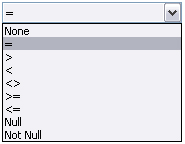
The available value are: