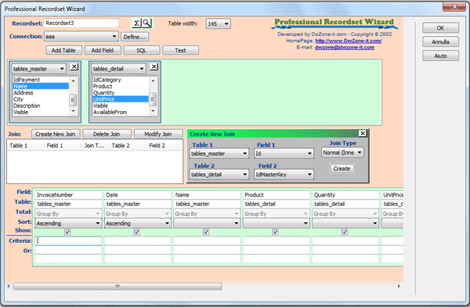
Asp Professional Query is a grafic design grid to create or edit the SQL statements in the Recordset (Query) ServerBehavior.
Support for Join Tables, group query and extended criteria.
It work like MS ACCESS with some small differences in the sintax.
No limitations in the table's number and in the field's number.
This extension is a set of 2 different behavior:
-
Professional recordset wizard: it's a server behavior used to create a recordset with complex query with grouping - join - alias
-
Professional query manager: it's a command to modify an sql directly in code view for coder users. has the same features of the wizard but don't insert any code in the page.