Professional Recordset Wizard
Version 1.3.6  how it workhelps and tutorialDownload demoAdd to cart
  Tutorial - Create Query with Tables Join


1°)

Open the "Professional Recordset Wizard" panel
(see example in Create Recordset with Simple select query)
Simple select query
Query with Tables Join
Calculation Query
Modify an existing query
   
2°) In the Field Name write the name of the Recordset
   

3°)

Select a valid connections
   
4°) Click on the "Add Table" button to insert the table
   
5°) In the "Table List Menu" select the table whose data you want to work with.
   
6°) Repeat the steps 4 and 5 for the second table
   
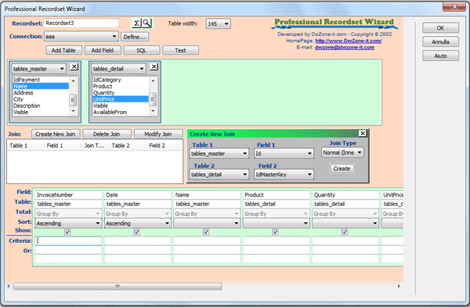
7°) Click on the "Create New Join" button.
The "Create New Join" Panel appear
   
8°) Select the table in the Table 1 list menu and the Field in the Field 1 list menu
   
9°) Select the table in the Table 2 list menu and the Field in the Field 2 list menu
   
10°) Select the type of Join in the Join Type list menu
   
11°) Double click on the fields you want add to your query
   
12°) Specify the criteria that limit records if required
   
13°) Select a sort order in the Sort cell for the fields you want to sort
   
14°) Select a sort order in the Sort cell for the fields you want to sort
   
15°) To view the result query code click on the "SQL" button
Click the Test button to execute the query and ensure that it retrieves the information you intended
(Remember the test mode work without criteria)
   
16°) Click the "OK" Button
The newly defined Recordset appears in the Bindings panel.
   
Grafic Example:
   
The corresponding code inserted in Your page: