This panel define the element of the header of your AtomFeed xml file.
Encoding:
The encoding of your AtomFeed file like:
<?xml version="1.0" encoding="utf-8" ?>
Create on:
On Page Load
on the OnLoad event of the page
Post variable
when the request.form variable exists
Get variable
when the request.querystring variable exists
Request variable
when the generic request variable exists
Session variable
when the session variable exists
Application variable
when the Application variable exists
Cookie variable
when the request.Cookie variable exists
With this variuos event you can define when the AtomFeed is created, but the most simple method is create a link in your pages that point to a page where you insert only this extension and that create the AtomFeed on the OnLoad event so when your user click on the link a new browser window is open and the AtomFeed is created and displayed in the browser window.
Export method:
the method to display the Rss Feed, can be:
Browser: display the AtomFeed inside the browser window
File: force the download of the AtomFeed file and display the SaveAs popup window, so the user can save the AtomFeed file on it's Pc.
File name:
The file name in case you setup the Export Method to file
Title:
The Title element of the AtomFeed header, can also be dynamic from a recordset
SubTitle:
The SubTitle element of the AtomFeed header, can also be dynamic from a recordset
Link:
The Link element of the AtomFeed header, can also be dynamic from a recordset
Language:
Pub date:
If checked insert the Update element in the format:
<updated>2006-11-26T15:20:27Z</updated>
Author name:
The Name of the Author element of the AtomFeed header,
can also be dynamic from a recordset
Author link:
The link of the Author element of the AtomFeed header,
can also be dynamic from a recordset
Author mail:
The mail of the Author element of the AtomFeed header,
can also be dynamic from a recordset
Custom tag:
If you need you can define more custom tag that will be insert in the header of the AtomFeed file. For each CustomTab you must define the label, the value and the type of the tag. The label is a string that will identify the tag like:
<yourCustomTagLabel>
The value is the text you want insert inside the tag.
The type is the type of tag the extension will insert.
The 5 type are None, Date, Text, html, shtml
Text tag example:
<yourCustomTagLabel>Your value here </yourCustomTagLabel>
html example:
<summary type="html">Example of Summary text in a AtomFeed 1 This is a test for a Dw extension This is line 3 of record 3 This is line 4 of record 2</summary>
When the type is setup to html can contain html tag and the < and > of the html tag will be replaced with < and >
Items:
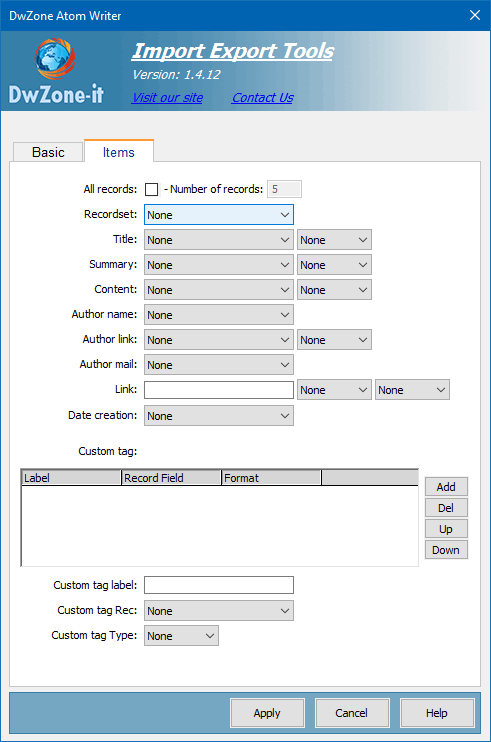
Define the items of the AtomFeed file
All records:
If checked the extension create the AtomFeed with all the records in the recordset, otherwise you can specify a number of record, this can be used to test the page and create a small Rss Feed file only for test or to limit the number of element in the AtomFeed file.
Recordset:
In the options Recordset pop-up menu, select the recordset you want to use as a content source
Title:
The recordset field where get the Title element of the item
Summary:
The recordset field where get the Summary element of the item
Content:
The recordset field where get the Content element of the item
Author name:
The recordset field where get the name of the Author element of the item
Author link:
The recordset field where get the link of the Author element of the item
Author mail:
The recordset field where get the mail of the Author element of the item
PubDate:
The recordset field where get the PubDate element of the item. The date will be in the format: <updated>2006-11-26T15:20:27Z</updated>
The recordset must return a valid date.
Custom tag:
If you need you can define more custom tag that will be insert in each item of the AtomFeed file. For each CustomTab you must define the label, the tag rec and the type of the tag. The label is a string that will identify the tag like:
<yourCustomTagLabel> The tag rec is the recordset field that contain the text you want insert inside the tag. The type is the type of tag the extension will insert.
The 5 type are None, Date, Text, html, shtml Text tag example:
<yourCustomTagLabel>Your value here </yourCustomTagLabel> html example:
<summary type="html">Example of Summary text in a AtomFeed 1 This is a test for a Dw extension This is line 3 of record 3 This is line 4 of record 2</summary>
When the type is setup to html can contain html tag and the < and > of the html tag will be replaced with < and >